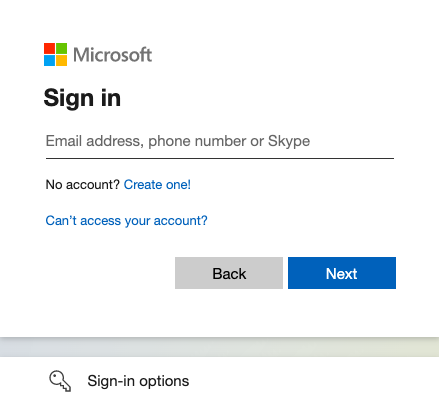
- You need to log in to https://login.microsoftonline.com / using your university mail (your mail may end with @nsu.ru and @g.nsu.ru).
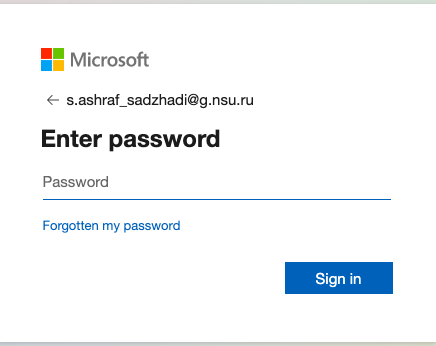
- Next, you need to get a password, to do this, click the forgotten my password.
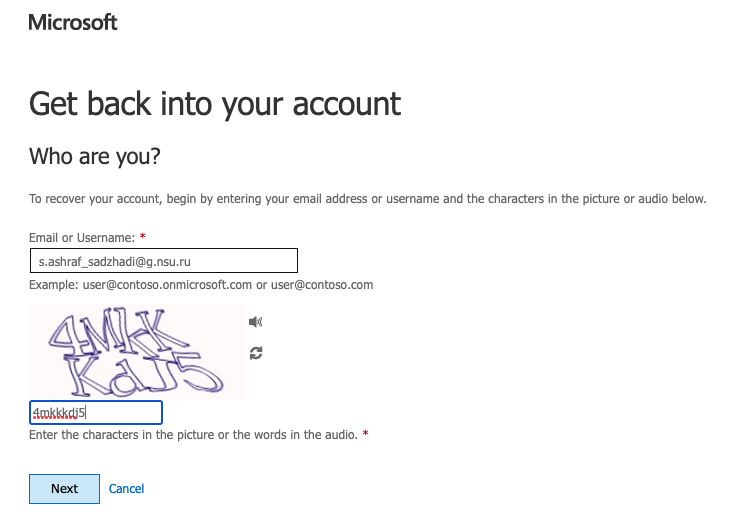
- Fill in all fields and click Next.
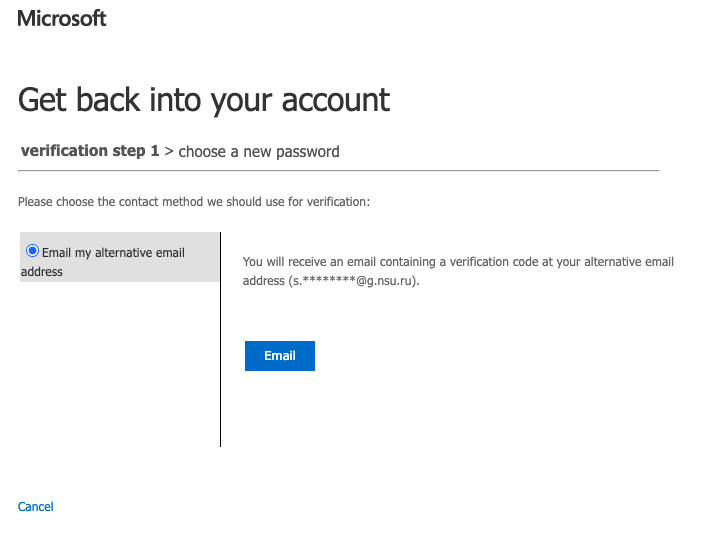
- Click the Email.
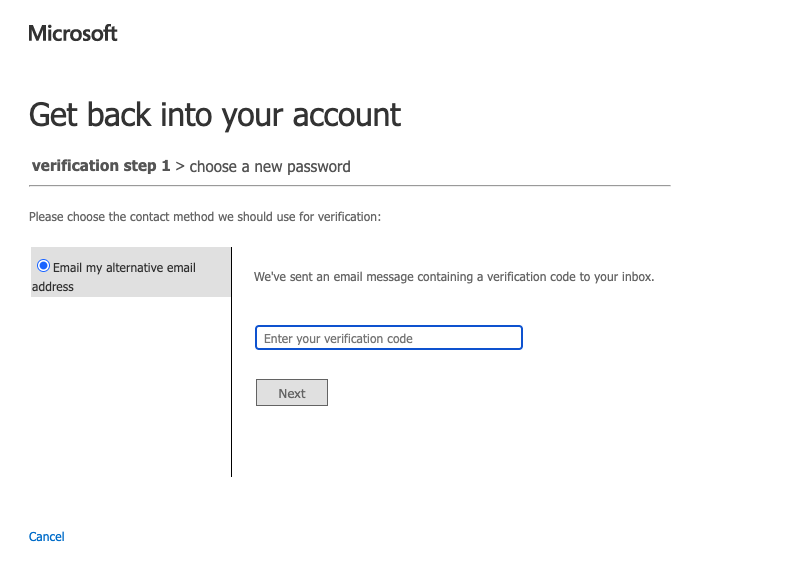
- Next, you need to enter the confirmation code.
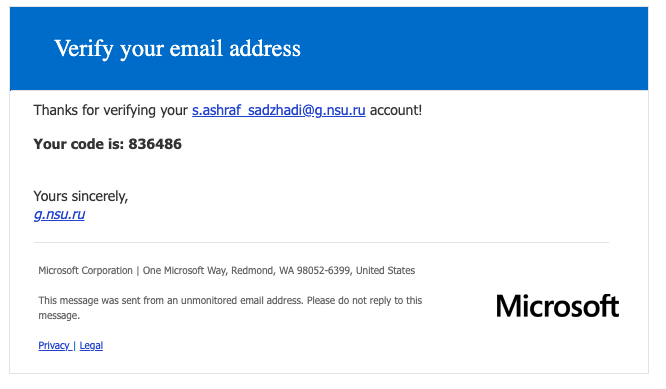
- Check your email. Look for an email from msonlineservicesteam@microsoftonline.com with a verification code.
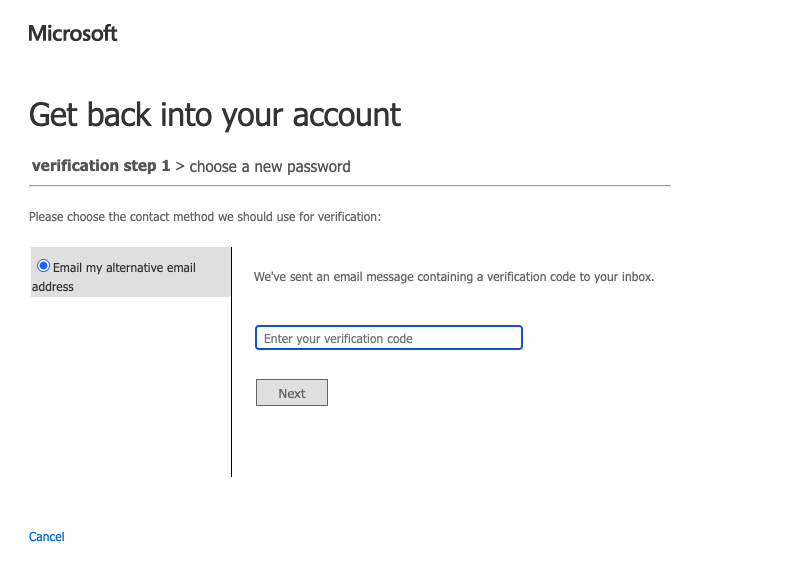
- Enter the verification code and click Next.
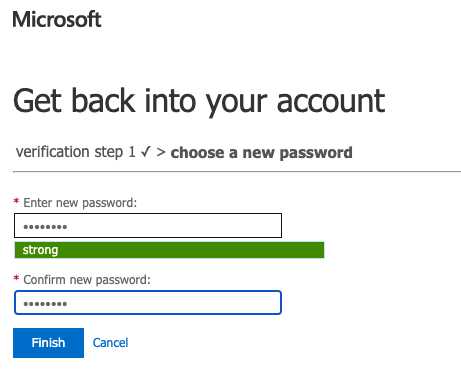
- Enter a new password. Make sure your password is strong (a strong password should be between 8 and 256 characters long and should include uppercase and lowercase letters, numbers, and special characters). Click Finish.
- When you enter a new password, you will receive a password reset notification by email.
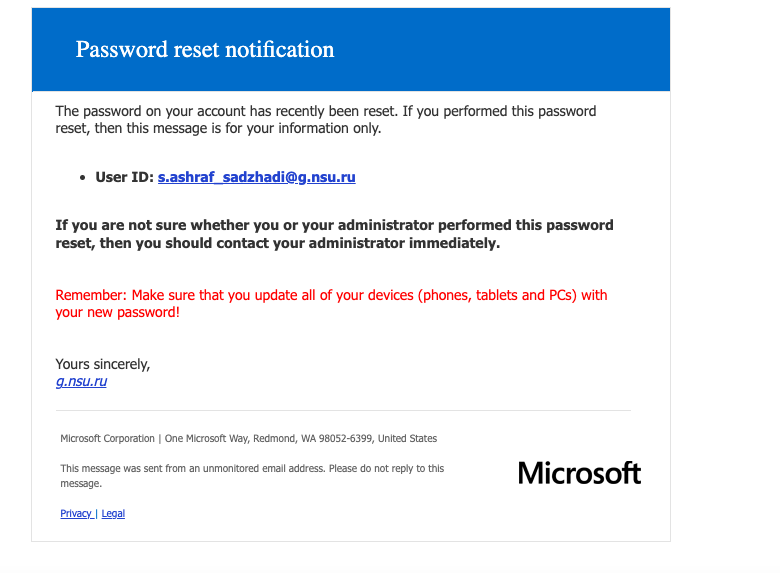
- Return to the Microsoft page step 8. Click the button Click here to sign in.
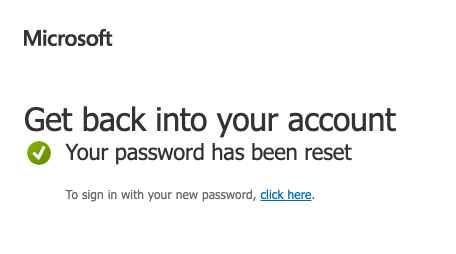
- When you first log in, you are required to provide a phone number or email address for the security of your account, they will not be used to send spam.
"Authentication phone - setup failed. Install now" field, click Install now.
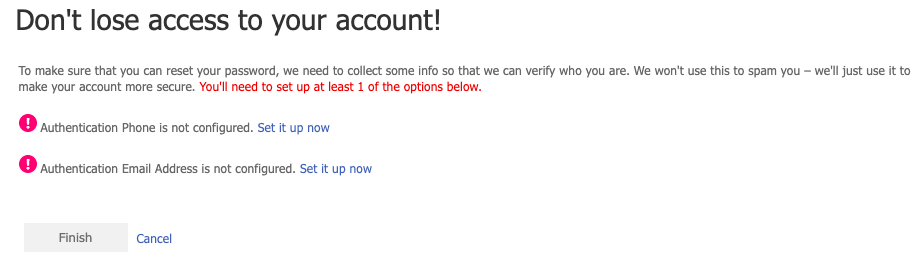
- Select your country and enter the phone number 10 characters (without "+7"). Click the Send me an SMS button.

- Enter the Verification Code and click the Verify button.

- Click Finish.
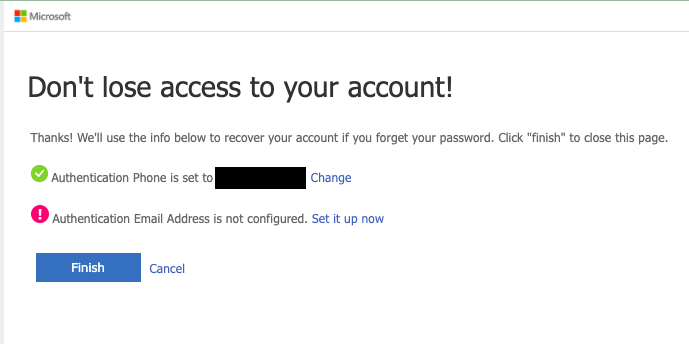
- If necessary, provide an additional email address.